Read more
The read more component lets you show a short preview of text with an expandable section for more content. Supports custom call-to-action text and unique IDs.
What is the read more component?
The read more component lets you show a short preview of text with an expandable section for more content. You can customize the call-to-action text (e.g., "Read more"/"Read less") and must provide a unique selector ID for each instance.
If you can't find this component in your CMS editor, contact us to discuss adding it.
Open the CMS editor where you want to add or edit a Read More component.
Drag the read more component onto your page.
Add the initial (preview) text in the primary box and the additional (expanded) text in the secondary box. If using HTML, set the HTML flag.
Customize the open/close text (e.g., "Read more" and "Read less").
Enter a unique selector ID in the bottom box. This is required for the component to work, especially if using multiple Read More components.
Save your changes in the editor.
Read more component settings
All Read More components support the standard CMS settings below. Use these tabs to control layout, typography, and display for your expandable text block:
Settings
Primary text
Enter the initial text that will be visible before expansion.
Contains HTML primary
If the primary text contains HTML, enable this option.
Secondary text
Enter the additional text that will be revealed when expanded.
Contains HTML secondary
If the secondary text contains HTML, enable this option.
Read more label
Enter the text for the "Read More" link.
Read less label
Enter the text for the "Read Less" link.
Component selector ID
Provide a unique selector ID for this Read More component instance. This is required for proper functionality
General
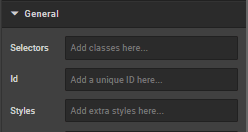
Selectors
In this box you can add classes that are defined elsewhere on the site to a specific page.
ID
ID is used to direct user to an element of the page or identify it for future use, so you can link to this aspect of the page.
Styles
Styles are used to add a specific style not predefined in a class. You can add style settings which can be applied against any component. Below are a list of styles you can add:
- Margin (either just
"margin:"or specific sides of a component like"margin-top:"or"margin-left:") - Padding (either just
"padding:"or specific sides of a component like"padding-top:"or"padding-left:") - Max Width
- Font
- Border
- ID
Examples:
max-width: 352px!important;
margin-bottom: 0 auto;
padding-top: 30px;
To center an image: margin:auto;
To center text/markdown: text-align: center;
To make a component go edge-to-edge: margin-left:-15px;margin-right:-15px
Typography
This section controls the text that appears on the page.
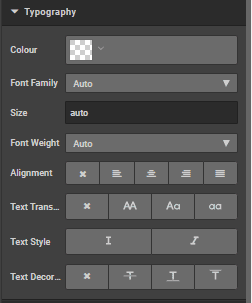
Colour
This box can be used to change the colour of the text. Use hex colour codes eg Red #ff0000 White #ffffff
Font family
Specify the font family or leave blank to automatically inherit the default page font
Size
Specify the size or leave blank to automatically inherit the default initial size
Weight
Specify the weight from the dropdown list, choose from 'light', 'normal' or 'bold' or select 'auto' to automatically inherit the default weight.
Alignment
Use icons to select the alignment choose from: 'no alignment', 'left align', 'centre align', 'right align' and 'justify' respectively
Text transform
Use icons to change the text from block capitals to lower case or title case or no transformation.
Text style
Use icons to choose from Italicised or not.
Text decoration
Use icons to choose from no decoration, strikethrough, underline or overline
Display
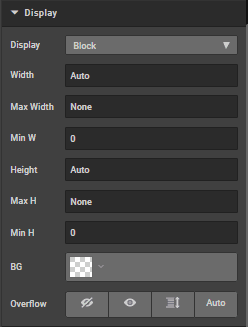
Display
Choose from the dropdown list to select display default is block, options are 'Flex', 'inline', 'none' and 'inline block'
Width
Specify a width
Max width
Specify a max width
Min width
Specify a min width
Height
Specify a height
Max height
Specify a maximum height
Min height
Specify a minimum height
BG
Change the background colour
Overflow
Chose from visible, not visible(icon) Scroll, scroll x
Spacing
Click on margins or borders to increase the margin or border by pixels
Borders
Click on borders to increase the border by pixels
How is this guide?
Last updated on