Manage products
How to add, edit and find products in Remarkable Commerce Manager, plus CSV exports and list view tips.
This guide explains the core product management workflows in Remarkable Commerce Manager. Different organisations may manage products via external feeds — if you use a feed, changes here may be overwritten.
Video: products tab system
Add a product
Follow these steps to create a new product record:
Go to Remarkable Commerce → Manage Products.
Click the Add button in the top-right of the screen. (See image: Add Product)
Fill in the product data using the tabbed editor (Initial data, Media, Pricing, Stock, Pages, Features, Facets) and click Save.

Edit a product
To edit an existing product:
Go to Remarkable Commerce → Manage Products.
Use the filters or sort options to find the product you want to edit.
Hover the product row and click the spanner (edit) icon to open the tabbed editor.
Make required changes in the relevant tabs and click Save.
Find a product
There are two common ways to locate products in the admin.
Option 1 — Filter products
Use filters to narrow the list quickly:
Go to Remarkable Commerce → Manage Products.
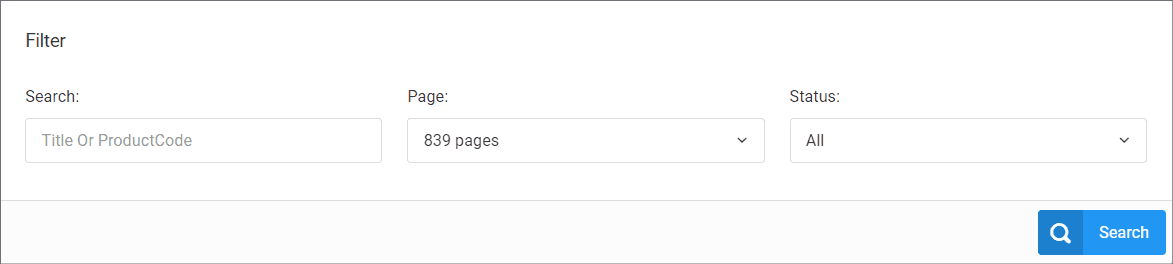
Enter the product title or code in the search box and click Search if you don't have an exact code.
Filter by the page the product appears on or by status (Live / Archived) to reduce results.
Open the product from the results to edit.
Option 2 — Sort
Sort and browse when you prefer to scan products:
Go to Remarkable Commerce → Manage Products.
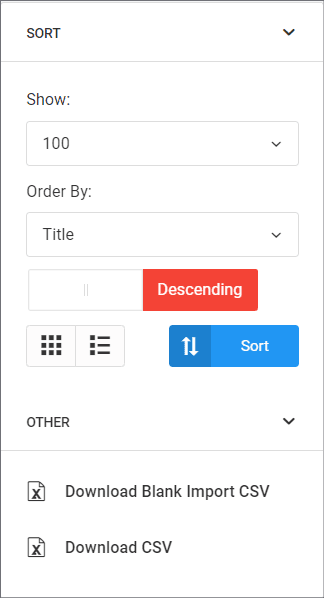
Use the sort control (far right) to sort by title, date created or price, in ascending or descending order
Switch to list view if you prefer a denser, row-based layout for editing or scanning.
List view of products
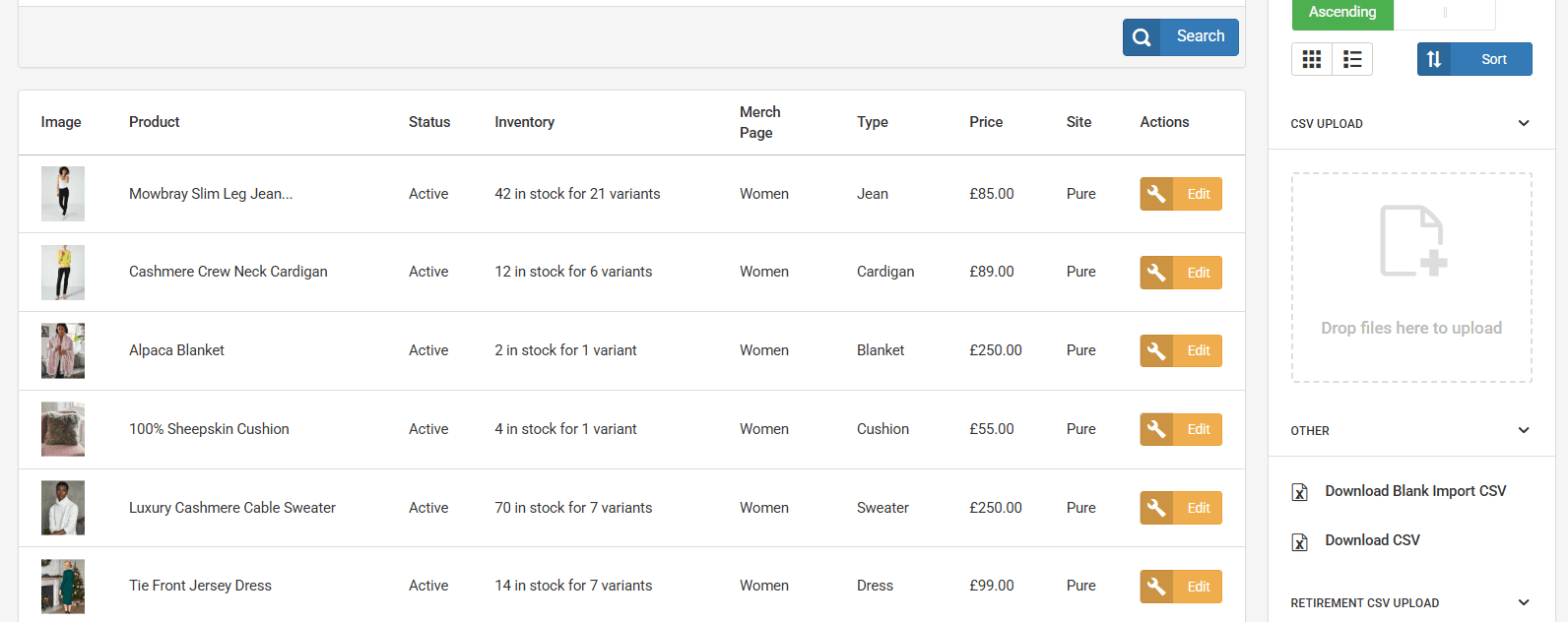
Switch the grid to list view using the control next to the sort button — list view shows rows and makes bulk scanning and inline actions easier.
Bulk editing products
You can export a CSV of products for bulk editing or integrations. The manage products screen also offers a blank import CSV to prepare data for re-import. Where there are a number of products to edit, it can be easier to download the products as a CSV, make changes in the CSV and then re-upload the CSV. To do this:
Go to Remarkable Commerce → Manage Products.
Click the Download CSV button in the top-right of the screen. This will download a CSV of all products.
Make changes to the products in the CSV and save.
Re-upload the CSV using the Upload CSV button next to Download CSV.
In some integrations the product feed is managed externally and changes made in the admin may be overwritten, please check with your site developer if you are unsure about this. In this case bulk editing should be done in the third party.
How is this guide?
Last updated on