Calendar
Toggle month, week or day views and click any date to add or edit events.
Views
The calendar can be viewed in three modes:
- Month: a full-month overview showing all events on each date.
- Week: a focused view of a single week with time-slots for scheduled items.
- Day: a detailed day-by-day timeline for fine-grained scheduling.
Switch between views using the view selector at the top-right of the calendar.
Add an event
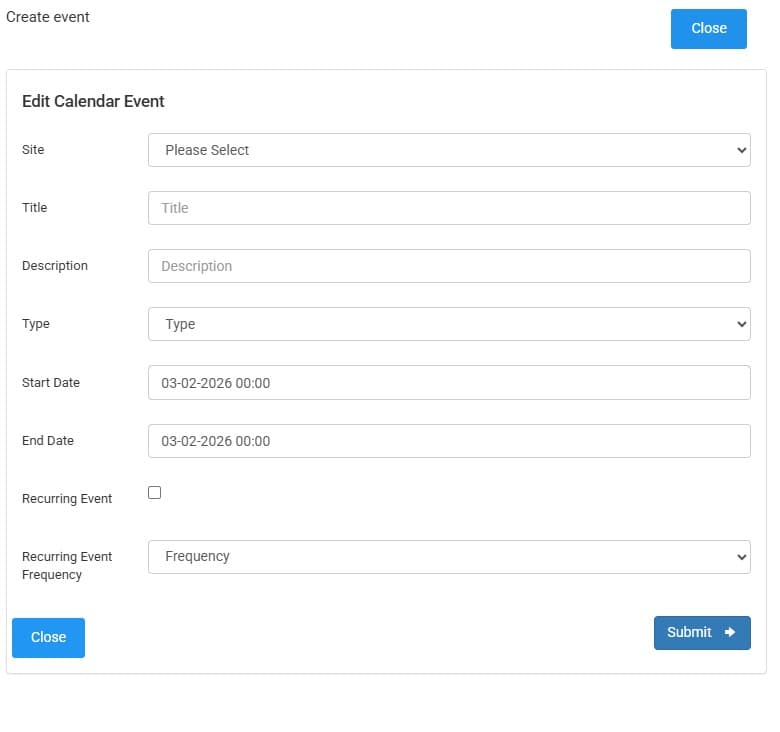
Click any date in the calendar to create a new event. A modal will open allowing you to enter the event details.
Click the date square (or the "+ Add" button) on the calendar to open the Add Event modal.
Fill in the relevant fields.
Click Save — your event will appear in the calendar.
Event fields
- Title (required)
- description (optional)
- Type (navigation, promotion, content, other)
- Start Date
- End Date
- Recurring event checkbox
- Recurring event frequency (daily, weekly, monthly, yearly)
Filters
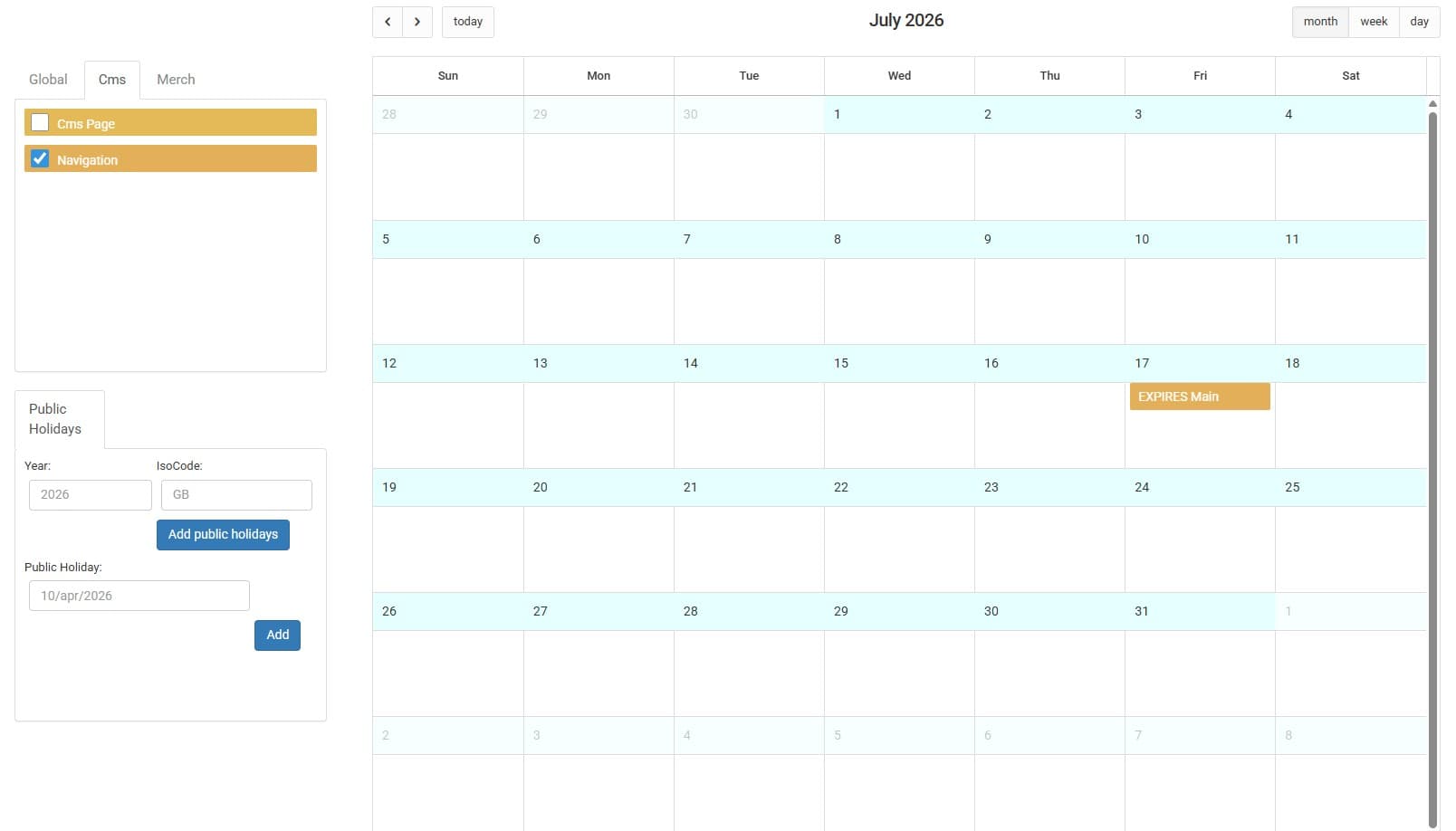
The calendar includes a left-hand filter panel that helps you focus on specific content types. Use the tabs to pick the site module then use the radio buttons to switch between views such as:
- CMS — shows when a page was added and its expiry date
- Navigations — shows navigation items and their expiry dates
- Promotions — shows active promotions and their expiry dates
Use the filter panel to toggle visibility for each content type and to quickly jump to items with imminent expiry dates.
Open the left-hand filter panel
Select the radio button for "CMS" "Navigations" or "Promotions" depending on which items you want to inspect.
View the information in the calendar view and go to the relevant module and amend if necessary.
How is this guide?
Last updated on