Enrich products using AI
How to enable OpenAI-powered product enrichment (admin buttons) and generate the API key needed for Remarkable to wire the integration.
This article explains how to enable the OpenAI-powered product enrichment buttons in the admin and how to generate the API key we need to connect your account.
How to enrich products using AI
See the short walkthrough video showing the ChatGPT buttons in the admin:
Areas where you can use AI in the admin.
The areas where you can use AI in the admin include a button that either has the chat gpt logo and blue background or a green button that has the ChatGPT loog and the text "Struggling for ideas, why not ask ChatGPT"
The buttons can be found on:
-
Initial data
- Generate meta title
- Generate meta description
-
Long description - generate a long description based on the short description and product details.
-
Pages - generate page suggestions.
-
Features - generate bullet points.
Getting the OpenAI buttons on your admin
To add the ChatGPT buttons to your admin we need an OpenAI API key from your account. The steps below show how to create an OpenAI account and generate a secret key you can share with Remarkable.
Go to https://platform.openai.com/ and sign up for an account (or sign in if you already have one).
Verify your email address when prompted and complete any required profile/billing details (company, birthday for age verification).
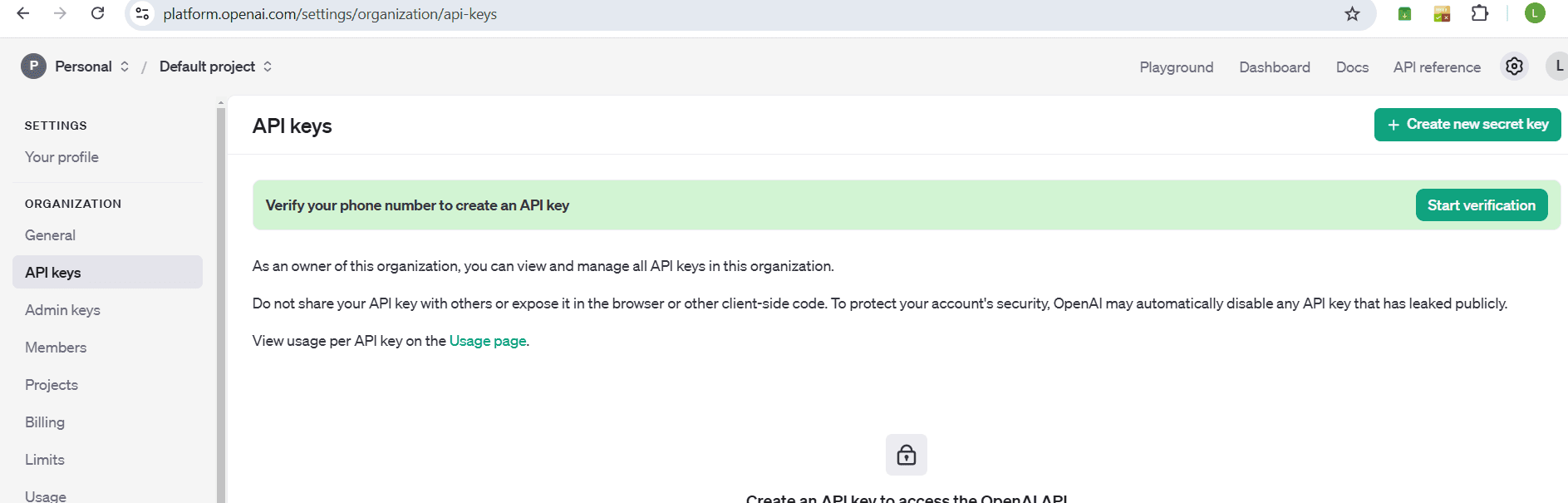
Open Settings (cog icon) and choose API keys.
Verify your phone number if prompted—this may be required before you can create keys.
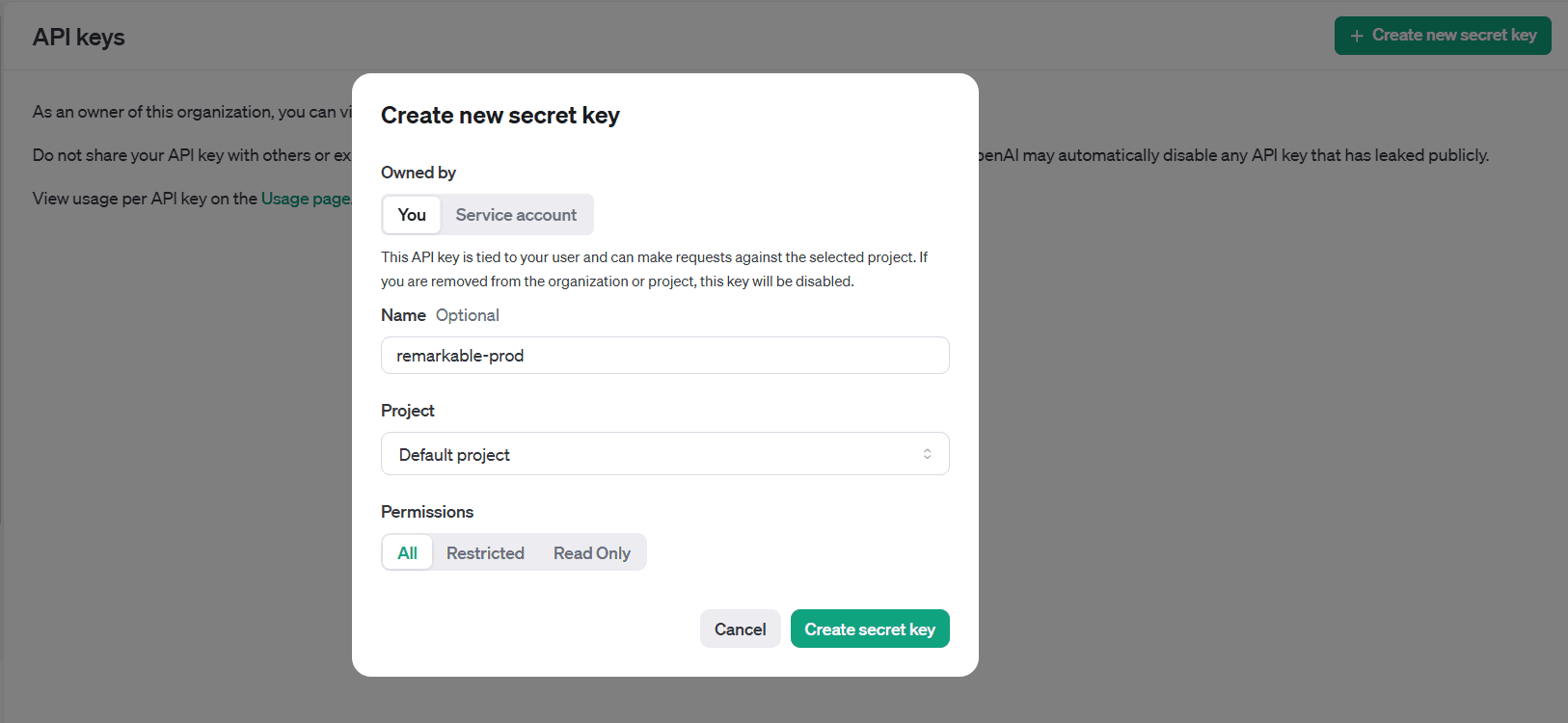
Click Create secret key. Use a name such as remarkable-prod so we can identify the key for usage reports.
Copy the generated secret key immediately — it is shown only once. Store it securely (password manager or encrypted file).
Add billing details to your OpenAI account if required (OpenAI requires a payment method for some usage tiers).
(Optional) Set usage limits or tier recommendations — we suggest the entry tier used by our integration for ~10,000 requests/day if appropriate for your usage.
Send the secret key to the Remarkable contact provided by your project team so we can wire the integration into your admin.
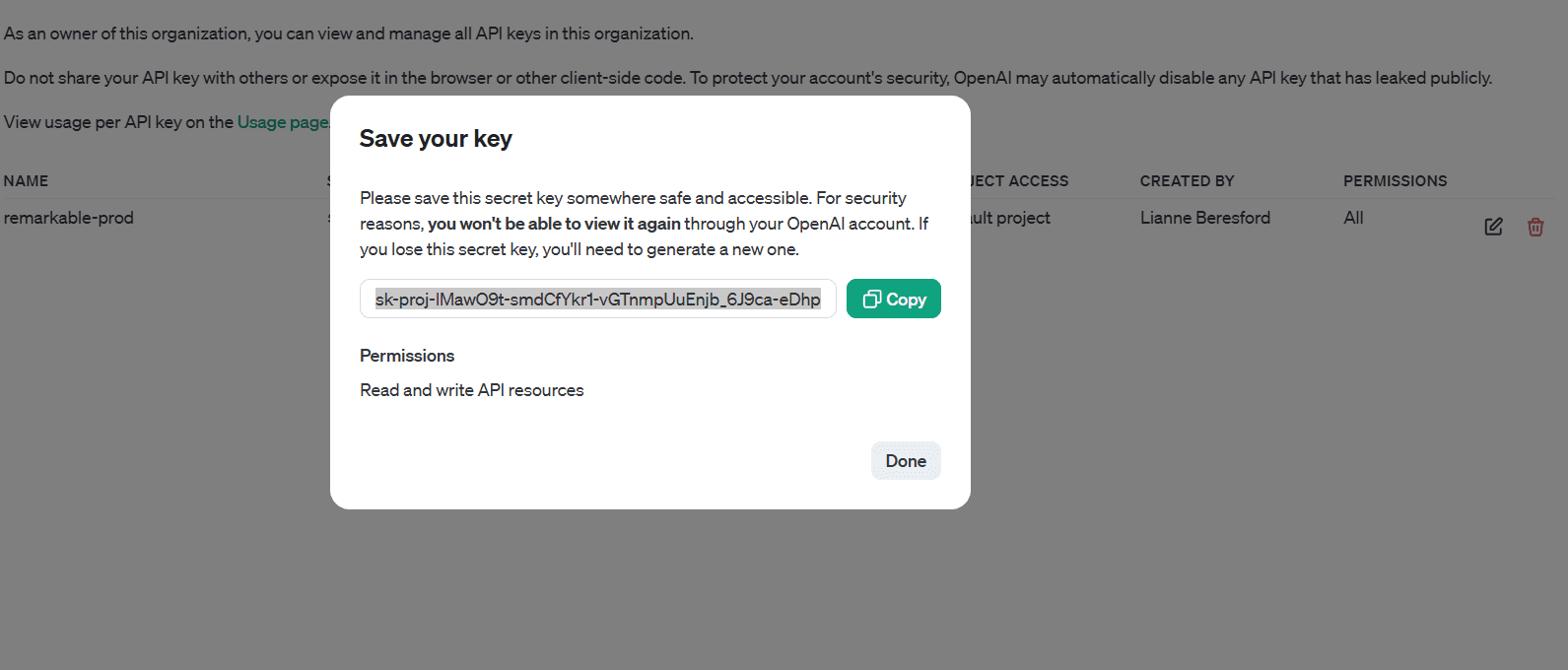
Treat secret API keys like any other credential — never post them publicly (issues/PRs, public chat, etc.). If a key is exposed, rotate it immediately in the OpenAI dashboard and provide the new key.
If you run into issues while creating the key or wiring the integration, contact your Remarkable support engineer and include a short description of the error and the account email used for OpenAI.
How is this guide?
Last updated on
Product requirements
More in depth look at what each section of the product editor is used for and what the required fields are.
Manage facets
The manage facets section allows you to manage the filters of your site by adding Facets and Values. These can then be assigned to products so that the product appears when a relevant filter is used.