Manage stock
View and update product stock and variations. Covers single edits, bulk CSV imports, deleting stock and handling store stock requests.
Use Remarkable Commerce Manager to view and update stock when the platform is the source of truth. If your stock is managed by an external feed or database, changes here may be overwritten — use this UI for manual edits and small corrections.
Stock relationships
Stock is organised in three levels: product → variation → variation value. For example, a T‑shirt (product) may have a Size variation, and the variation values are Small, Medium, Large. Stock quantities are tracked at the variation value level.
Some products have no variations (single SKUs); others use variations to represent sizes, colours or other attributes.
Update stock for single products (small updates)
Go to Products → Stock in Remarkable Commerce Manager.
Use filters or Quick find to locate the product or variation you want to change.
Click Edit on the product or variation.
Update the stock quantity (or variation value) and click Save.
Bulk updates (large changes)
If you need to update many SKUs, use the CSV import to make bulk changes.
Go to Products → Stock.
Click Download import CSV at the bottom of the page. 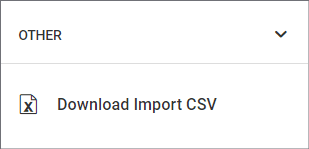
Edit the CSV with your stock changes and save the file.
Upload the CSV by dragging it into the upload box. 
Verify a sample of products to make sure updates applied correctly.
Deleting or reducing stock
Find the product or variation you want to delete or reduce.
Click Edit and either set the quantity to 0 or use the Delete action if available.
Save and confirm the change took effect.
Stock requests
When you use physical stores, staff can request stock from the online store — these requests appear in the Stock requests area and can be managed like internal messages.
Go to Products → Stock requests (if your account has this feature).
Open a request to review details and requested quantities.
Fulfil the request, add an internal note or update stock levels as needed.
If stock is managed by an external feed or database, edits made here may be overwritten. Use the Stock UI for manual fixes and small updates only — coordinate with your integrations team for bulk or automated changes.
How is this guide?
Last updated on
Manage reviews
Find, approve, remove and export product reviews from the Manage reviews screen.
Overview
Overview of customers features in Remarkable Commerce Manager. to manage customer data such as name, contact details and addresses, this information comes from account sign ups on the Retailers website. The customers section of Remarkable Commerce, allows the retailer to change First name, last name, contact numbers and email addresses, there is also the option to view orders from the customer. There is also the option to message the customers and manage testimonials.