Countdown timer
The Countdown timer component lets you display a live countdown to a specific date and time, with flexible display options for different time units.
What is the countdown timer?
The countdown Timer component displays a live countdown to a specific date and time. You can choose which time units (seconds, minutes, hours, days, weeks, months) to show.
Open the CMS editor where you want to add or edit a Countdown Timer.
Add the Countdown Timer component to your page.
Enter the target date and time in the format yyyy/mm/dd hh:mm.
Toggle which time units to display: seconds, minutes, hours, days, weeks, or months.
Save your changes in the editor.
The countdown will update live on your site, showing the time remaining until your chosen date.
Countdown timer settings
All Countdown timers support the standard CMS component settings below. Use these tabs to find out how to control layout, typography, and display for your timer:
Settings
End date
Add the date to countdown to in the form yyyy/mm/dd hh:mm. For example, 2024/12/31 23:59 for New Year's Eve.
Show seconds
Toggle this option to show or hide the seconds in the countdown.
Show minutes
Toggle this option to show or hide the minutes in the countdown.
Show hours
Toggle this option to show or hide the hours in the countdown.
Show days
Toggle this option to show or hide the days in the countdown.
Show weeks
Toggle this option to show or hide the weeks in the countdown.
Show months
Toggle this option to show or hide the months in the countdown.
General
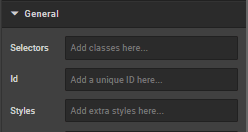
Selectors
Add classes defined elsewhere on the site to a specific page.
ID
Direct users to an element or identify it for future use (e.g., anchor links).
Styles
Add custom styles not predefined in a class. Examples:
- Margin (e.g.,
margin:,margin-top:) - Padding (e.g.,
padding:,padding-top:) - Max Width
- Font
- Border
- ID
Examples:
max-width: 352px!important;
margin-bottom: 0 auto;
padding-top: 30px;
To center an image: margin:auto;
To center text/markdown: text-align: center;
To make a component go edge-to-edge: margin-left:-15px;margin-right:-15px
How is this guide?
Last updated on