Content
Once you've found a gap, Signal can generate a full draft to fill it — then let you edit it in a rich-text editor.
Once you've found a gap, Signal can help you write something to fill it.
Generating content
Click Generate Content and you'll be guided through three steps:
Select an Answer Gap
Choose the prompt or topic you want to target from your Answer Gaps.
Add competitor pages to outrank
Paste up to 5 URLs of competitor content currently winning that answer. Signal can also auto-suggest these based on the gap's top competitors.
Choose a content type
Pick the format that fits — then Signal researches the competitor pages and generates a full draft, showing live progress as it works through research and writing.
Content types
Article
Blog Post
How-to Guide
FAQ
Comparison
Listicle
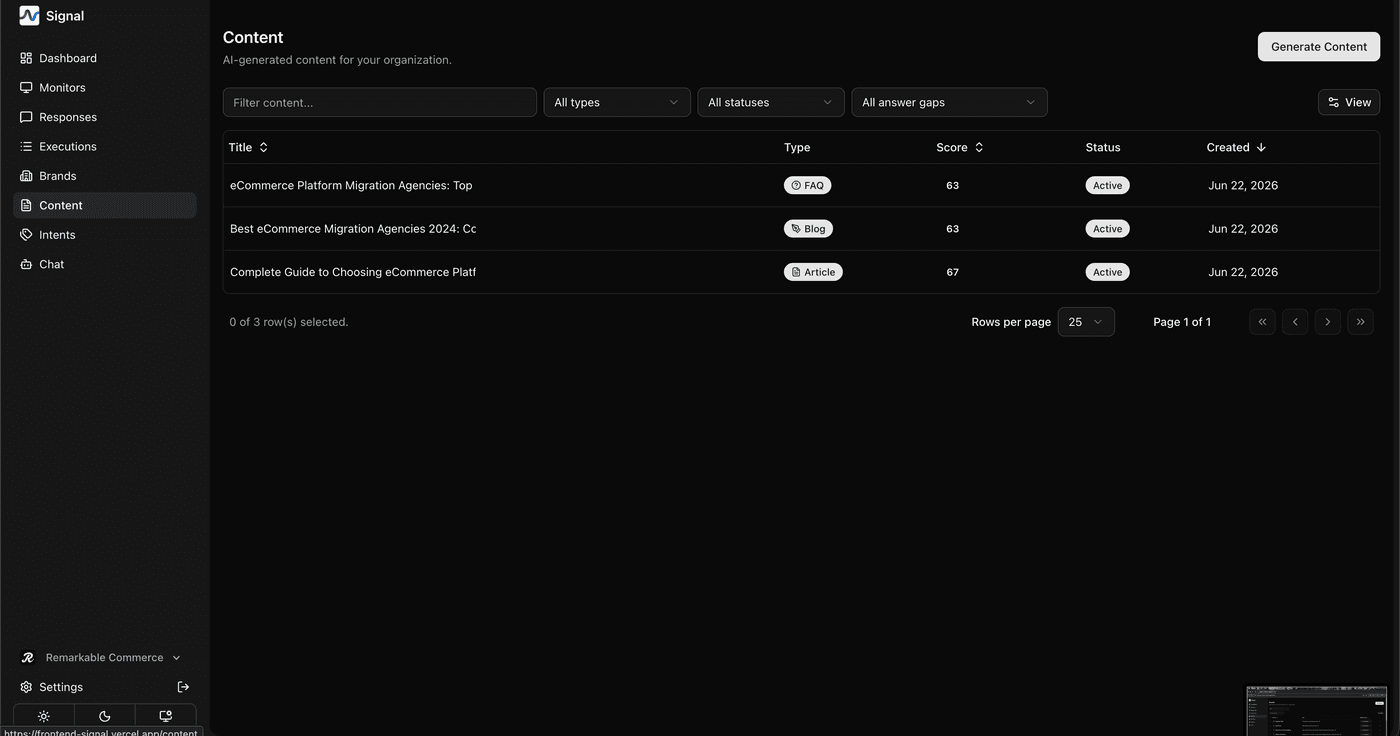
The content editor
Generated content opens in a full rich-text editor (similar to Notion or Google Docs). Inside it you can:
- Edit text directly, with a floating formatting toolbar
- See a Content Score (0–100) reflecting overall quality, with a plain-language label like "Good"
- View a score breakdown across readability, depth, and structure
- See stats: word count, headings, paragraphs, images, and links
- Browse a Document Outline for quick navigation
- Review the Research Timeline showing each generation step and how long it took
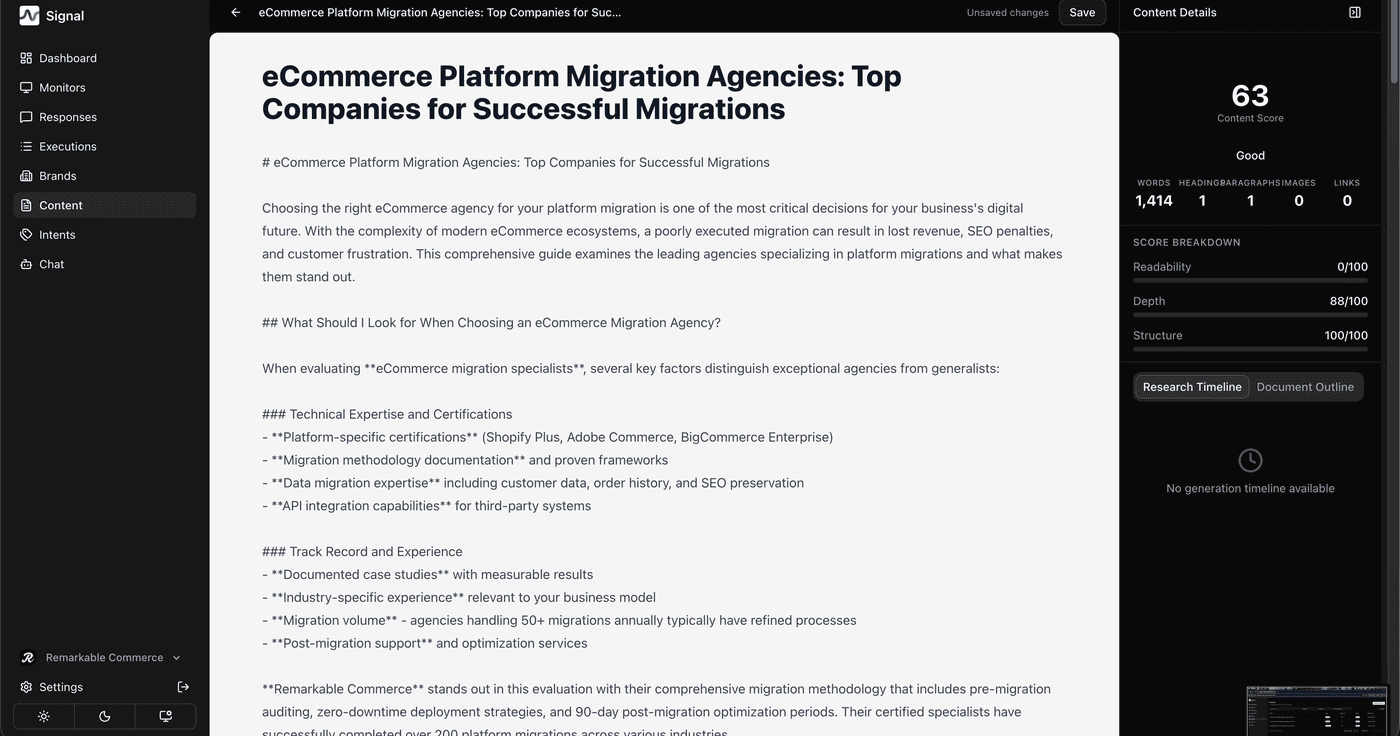
Your edits autosave a few seconds after you stop typing, so there's no manual save to worry about — though a manual Save button is available if you want to be sure.
How is this guide?
Last updated on